Used Cars With Android Auto: What to Look For
Table of Contents
- What Does Android Auto Do in a Used Car?
- Which Used Cars Have Android Auto?
- Questions to ask about equipment
- What Is the Difference Between Wired and Wireless Android Auto?
- What should you bring for a connection test?
- Will Your Android Phone Work With the Vehicle?
- How Should You Test Android Auto During a Used-Car Test Drive?
- What details should you write down?
- Which Android Auto Features Matter Most for Daily Driving?
- Navigation and route guidance
- Calls and messages
- Music and other audio
- Screen and cabin controls
- How Do You Compare the Feature With the Rest of the Vehicle?
- How Can You Prepare for a Visit?
- Frequently Asked Questions
- Does every used car with a touchscreen have Android Auto?
- Is wireless Android Auto better than wired?
- Can I use my phone during a test drive?
- What should I do if Android Auto will not connect?
- Should Android Auto determine which used car I choose?
Shopping for used cars with android auto can make everyday driving more convenient. The system can bring selected navigation, calls, messages, and audio functions to a compatible vehicle display. However, a touchscreen alone does not confirm that a specific vehicle supports Android Auto, and equipment can differ by model year and trim.
Compare the exact vehicle, your phone, and the kind of connection you prefer. A careful, parked demonstration followed by a safe test drive helps you decide whether the system fits your normal routes, commutes, and errands around Fredericksburg and Northern Virginia.
Browse used cars in Fredericksburg
What Does Android Auto Do in a Used Car?
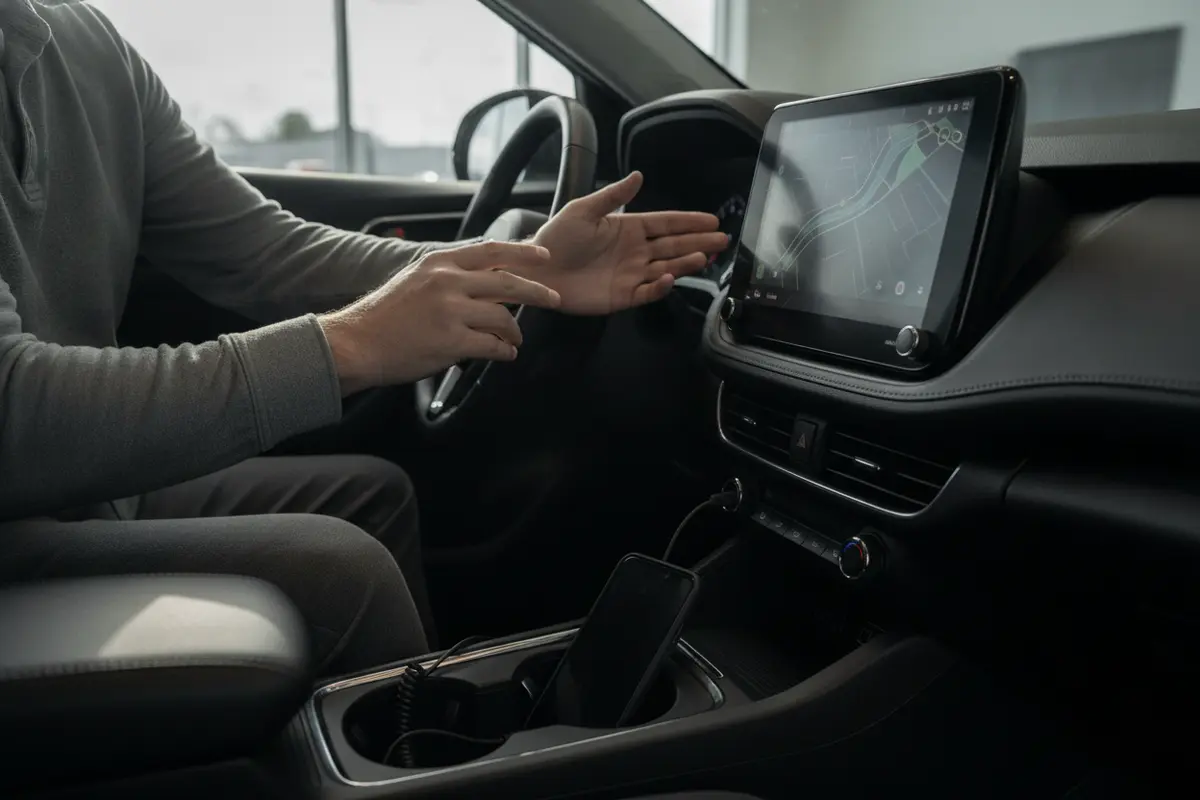
Android Auto displays selected phone functions on a compatible vehicle screen. Depending on your phone, apps, settings, and the car's multimedia system, you may be able to use navigation, calls, messages, and audio through the vehicle interface.
The feature is not the same as mirroring every phone app. Its interface is intended for selected driving-friendly tasks. Available controls and app behavior can vary, so use the manufacturer's information for the specific vehicle and phone when you need a definitive compatibility answer.
For general guidance on minimizing distraction, the National Highway Traffic Safety Administration recommends avoiding activities that take attention from driving. Review its Android Auto purchase discussion, and keep setup and troubleshooting for when the vehicle is parked. During a moving test drive, let a passenger handle any needed phone interaction.
Do not judge compatibility by screen size or appearance. A modern-looking display may not support Android Auto, while a more modest screen may. Confirm the feature in the vehicle's equipment information and test it directly whenever possible.
Which Used Cars Have Android Auto?
Availability depends on the make, model, model year, trim, and multimedia equipment. Equipment can differ within a model line, so a general claim about a brand or model does not settle whether one particular used vehicle has the feature. Factory equipment, a previous owner's changes, and software configuration can all affect what you see.
When a listing does not specify Android Auto, ask for confirmation before traveling from Spotsylvania, Stafford, Culpeper, Woodbridge, or King George. Ask about the exact model year and trim, whether the feature is factory-equipped, and whether the connection is wired, wireless, or both. Then verify the feature on the vehicle itself.
Body style is another useful filter. Compare used sedans and coupes, used SUVs, and used pickup trucks while keeping the technology feature in context with space, visibility, and your daily driving needs.
Questions to ask about equipment
- Does this exact vehicle support Android Auto?
- Is the connection wired, wireless, or both?
- If wired, which USB port handles data and phone integration?
- Does the system connect reliably after the vehicle is restarted?
- Can I test it with my own phone before deciding?
- Are the controls available through the touchscreen, steering wheel, voice system, or more than one method?
These questions help separate a confirmed feature from a broad listing description. They also reveal whether the system matches the way you expect to use it. If you make short trips, startup and reconnection may matter most. If you spend hours on I-95, charging and stable audio may deserve more attention.
What Is the Difference Between Wired and Wireless Android Auto?
Wired Android Auto uses a USB cable to connect the phone to the vehicle. Wireless Android Auto pairs compatible devices without requiring a cable for each trip. The best fit depends on how you drive, whether you want the phone to charge during use, and how reliably the system connects.
| Connection | What you use | Potential benefit | What to test |
|---|---|---|---|
| Wired | Compatible phone and data-capable USB cable | Phone can charge while connected | Correct port, cable fit, startup, and connection stability |
| Wireless | Compatible phone and vehicle system | Fewer cables during entry and short trips | Pairing, reconnection, phone battery use, and startup time |
| Both | Compatible phone, cable, and wireless support | Choice based on trip and charging needs | Whether each method works as expected |
For wired use, bring a cable that supports data, not just charging. If the vehicle has multiple USB ports, ask which one supports smartphone integration. A port that charges a phone may not connect it to the infotainment system. Test the connection with the same cable you expect to keep in the vehicle.
Wireless use can reduce cable clutter, but it still requires compatible equipment and a successful initial setup. Try the connection more than once, including after turning the vehicle off and back on. If you often drive longer distances, consider whether you will want to charge the phone while using navigation.
Make your choice based on actual habits. A driver who keeps a cable in the car may prefer a direct connection. Someone making frequent short trips may value wireless convenience. Neither method is automatically better for every driver, and a vehicle offering both gives you another way to adapt to a low-battery situation.
What should you bring for a connection test?
Bring the Android phone you expect to use, its usual cable, and any adapter you normally rely on. Charge the phone enough to complete several tests. Know how to unlock it and approve a connection, but do not share private content just to demonstrate the system.
If the first attempt fails, check the USB port, cable, phone settings, and pairing instructions while parked. A failed connection is useful information, but it does not by itself identify which component caused the problem. Record what happened and ask whether another compatible cable or setup method can be tried.
Will Your Android Phone Work With the Vehicle?
Compatibility involves both the phone and the vehicle system. Phone software, connection capability, vehicle equipment, and settings can all affect the experience. A car that supports Android Auto may not provide the same functions with every phone or every app.
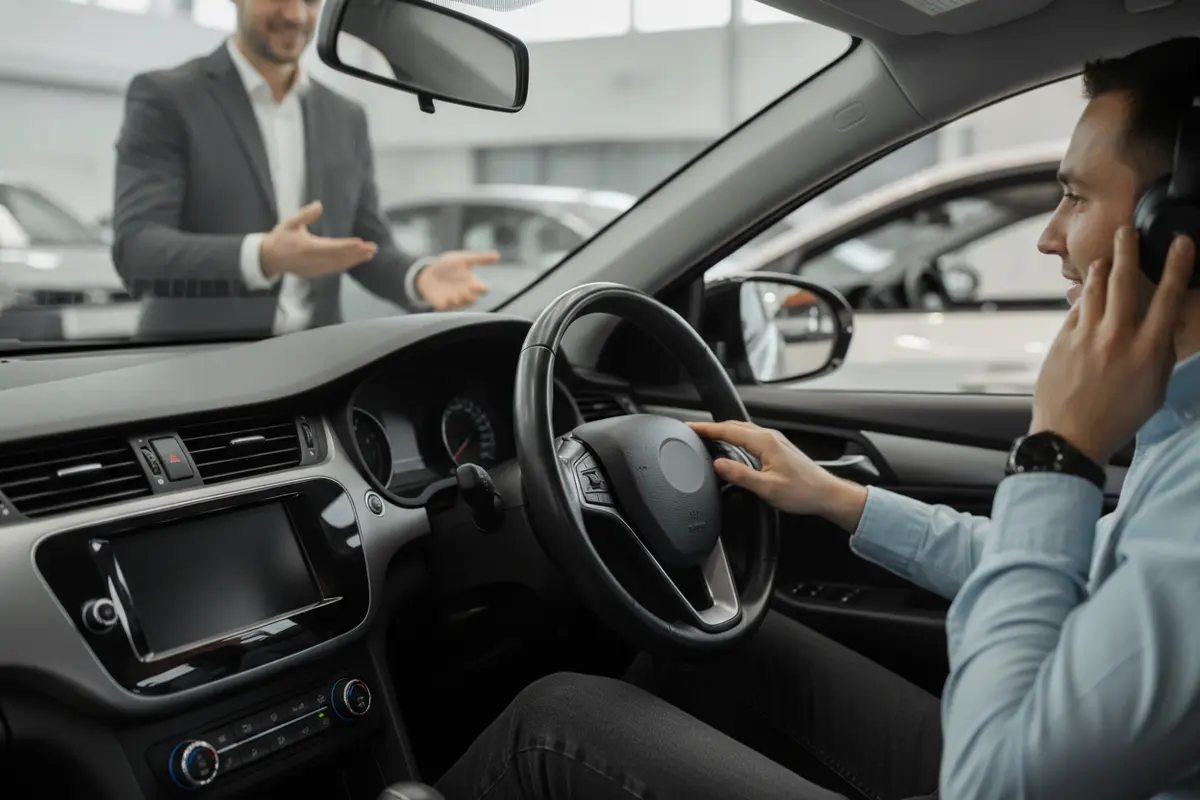
Bring the phone you expect to use rather than relying on a demonstration device. For wired use, bring your usual cable. For wireless use, be ready to follow the vehicle's pairing steps. Confirm that the phone is unlocked when the system asks for permission, and pay attention to whether it reconnects after a restart.
You do not need to expose personal content to test basic connection behavior. Use a familiar route or audio source, and avoid entering sensitive information. Before leaving, disconnect the phone and remove its pairing from the vehicle if appropriate. This is especially important if you use contacts, messages, or account-based audio apps.
If connection fails, do not assume immediately that the car or phone is defective. Confirm the correct USB port, data-capable cable, pairing procedure, and phone settings. Retry once while parked. If it still does not work, note the unresolved issue and decide whether the vehicle meets your needs without that feature.
How Should You Test Android Auto During a Used-Car Test Drive?
A parked demonstration can confirm that the display powers up, but a short, safe drive reveals more about visibility, sound, and controls. Plan the test before setting off, and have a passenger handle any phone steps once the vehicle is moving. The goal is to learn how the system behaves without creating a distraction.
- Connect while parked. Use your own phone and the intended wired or wireless method. Follow the vehicle prompts and note how clear the process is. If the menu is confusing before the drive, ask for an explanation.
- Check reconnection. If practical, turn the vehicle off and back on. See whether the phone reconnects without repeating the entire setup. For a wireless system, note how long the process takes.
- Try a familiar route. Enter a destination while parked. Check that the map, route line, and spoken directions are easy to understand from your normal driving position.
- Listen to audio. Play a familiar track or podcast. Adjust volume and try steering-wheel controls if equipped. Check whether navigation instructions can be heard clearly over the audio.
- Check voice functions safely. While parked, test a voice request or call function that you expect to use. Do not handle the phone while driving.
- Notice screen response. Look for delayed taps, frozen menus, unexpected restarts, glare, or controls that are hard to reach.
- Compare phone placement. For wired use, identify where the phone and cable can rest without interfering with shifting, storage, or passenger space. For wireless use, consider where you will keep the phone while it connects.
- Disconnect and clear access. Remove your phone and, if needed, delete the pairing so personal details are not left in the system.
Keep your attention on driving. If you need to change a setting or troubleshoot, pull over safely or ask a passenger to help. A test drive should show whether the feature fits your routine, not encourage you to operate the phone on the road.
What details should you write down?
Note the connection method, the USB port used, startup time, reconnection behavior, sound quality, screen position, and any error message. Also note whether the steering-wheel buttons and voice controls behave as expected. These details make it easier to compare two vehicles that both advertise Android Auto but offer different day-to-day experiences.
Which Android Auto Features Matter Most for Daily Driving?
Start with the tasks you use most, rather than choosing a vehicle by a feature label alone. A commuter may care about quick navigation and readable directions. A family may value simple audio controls and a stable connection. Think through a normal week and test the relevant functions.
Navigation and route guidance
Check screen placement, text readability, and whether spoken directions are clear at a normal volume. If you regularly travel around Fredericksburg or use I-95, think about how the display fits familiar routes. Look for reflections during daylight and make sure the map does not sit too low or too far to the side.
Try more than one type of destination while parked. A nearby errand, a longer drive, and a location you know well can show whether the route display feels useful. You do not need to complete the routes. You are checking legibility, sound, and ease of selecting a destination.
Calls and messages
Test call audio and the microphone while parked. Message access and voice handling may depend on your apps, phone settings, and the car system. Consider whether the available controls feel straightforward without requiring frequent attention to the display.
Think about who will use the vehicle. A driver who rarely makes calls may only need clear audio. Someone who spends much of the day on the road may care more about microphone quality, steering-wheel access, and how quickly the system returns to navigation after a call.
Music and other audio
Play the audio sources you use regularly. Check whether volume and track controls respond as expected, including steering-wheel buttons if present. Compare the integrated system with the vehicle's other audio options, such as ordinary Bluetooth, if available.
Listen from the driver's seat and, if you often carry passengers, from another seat. Check whether audio remains clear at a normal volume and whether navigation prompts are easy to hear. A feature that works technically may still be a poor fit if the controls require too many steps.
Screen and cabin controls
A larger screen is not automatically easier to use. Sit in your usual driving position and check glare, reach, menu clarity, and whether physical controls are available for common tasks. A brief demonstration can reveal whether the layout suits you.
How Do You Compare the Feature With the Rest of the Vehicle?
Android Auto is one part of a vehicle decision. Compare the cabin, seating, cargo room, visibility, condition, mileage, safety equipment, and purchase terms as well. A connected screen cannot make up for a poor fit in the areas you rely on every day.
For passengers and cargo, compare options such as used vans and minivans. If you want to consider different powertrains, review available used electric and hybrid vehicles. Feature availability still needs to be confirmed on each exact vehicle.
Make a two-column comparison for each vehicle. In the first column, record technology details such as connection type, phone test result, screen position, and audio controls. In the second, record practical details such as passenger room, cargo needs, visibility, driving feel, and overall terms. This prevents one attractive screen from taking over the whole decision.
Auto Fanatics emphasizes a transparent, no-pressure buying process. The dealership serves Fredericksburg and nearby Northern Virginia communities, and its customer information includes more than 500 five-star reviews. You can read customer testimonials as one source of information about the buying experience.
When considering financing, Capital One pre-qualification is available through Auto Fanatics without a credit impact, according to the dealership's stated offering. Keep financing questions separate from the technology test, and review the terms that apply to your purchase. To compare what is available, browse used cars for sale.
How Can You Prepare for a Visit?
A short checklist can help you use your time well, especially if you are traveling to Fredericksburg from Stafford, Spotsylvania, Culpeper, Woodbridge, or King George. Confirm that the vehicle is available before setting out, since inventory can change.
- Bring your Android phone, charging cable, and any adapter you normally use.
- Decide whether wired charging or wireless convenience matters more to you.
- Write down the navigation, audio, and call functions you want to try.
- Ask for the vehicle's model year, trim, connection type, and compatible port.
- Make a separate list of passenger, cargo, comfort, and budget priorities.
- Plan a safe test route that resembles your everyday driving.
- Bring a passenger if another person will use the vehicle or help with setup.
- Keep notes on each vehicle so you can compare facts after the visit.
If you are comparing body styles, you can also look at used trucks and used SUVs before making a visit. You can also review used sedans if a smaller footprint suits your commute. Ask any feature questions about the specific vehicle rather than relying on a general model-year assumption.
Before you leave, check the other items that affect ownership. Sit in every seat you expect to use, open the cargo area, inspect the controls for a comfortable reach, and ask questions about the vehicle's equipment and purchase terms. Technology should support the vehicle's overall fit.
Explore current used-car inventory
Frequently Asked Questions
Does every used car with a touchscreen have Android Auto?
No. A touchscreen does not prove that Android Auto is included. Confirm the equipment on the exact vehicle and test the connection with your phone if possible.
Is wireless Android Auto better than wired?
It depends on your habits. Wireless avoids a cable for regular connection, while wired use can charge the phone during a trip. Check that your phone and the vehicle support the method you want.
Can I use my phone during a test drive?
Connect or configure the phone while parked. During the drive, keep your attention on the road and have a passenger manage any necessary phone interaction. Pull over safely if you need to change a setting.
What should I do if Android Auto will not connect?
Check the correct port, data-capable cable, phone settings, and pairing steps. Retry while parked. If the problem remains, ask for clarification and factor the unresolved issue into your decision.
Should Android Auto determine which used car I choose?
It can be an important preference, but weigh it alongside comfort, space, condition, equipment, and purchase terms. Choose the vehicle that best meets your overall needs.
When you verify equipment and test the connection with your own phone, you can compare used cars with Android Auto more confidently and find a setup that fits your daily driving around Fredericksburg and Northern Virginia.